Low-Latency HLS
Apple supports Low-Latency HLS (LLHLS), which enables low-latency video streaming while maintaining scalability. LLHLS enables broadcasting with an end-to-end latency of about 2 to 5 seconds. OvenMediaEngine officially supports LLHLS as of v0.14.0.
LLHLS is an extension of HLS, so legacy HLS players can play LLHLS streams. However, the legacy HLS player plays the stream without using the low-latency function.
| Title | Descriptions |
|---|---|
| Container | fMP4 (Audio, Video) |
| Security | TLS (HTTPS) |
| Transport | HTTP/1.1, HTTP/2 |
| Codec | H.264, H.265, AV1, AAC |
| Default URL Pattern | http[s]://{OvenMediaEngine Host}[:{LLHLS Port}]/{App Name}/{Stream Name}/llhls.m3u8 |
Configuration
To use LLHLS, you need to add the <LLHLS> elements to the <Publishers> in the configuration as shown in the following example.
<Server>
    ...
    <Bind>
        <Publishers>
            <LLHLS>
                <!--
                    OME only supports h2, so LLHLS works over HTTP/1.1 on non-TLS ports.
                    LLHLS works with higher performance over HTTP/2,
                    so it is recommended to use a TLS port.
                -->
                <Port>80</Port>
                <TLSPort>443</TLSPort>
                <WorkerCount>1</WorkerCount>
            </LLHLS>
        </Publishers>
    </Bind>
    ...
    <VirtualHosts>
        <VirtualHost>
            <Applications>
                <Application>
                    <Publishers>
                        <LLHLS>
                            <ChunkDuration>0.2</ChunkDuration>
                            <SegmentDuration>6</SegmentDuration>
                            <SegmentCount>10</SegmentCount>
                            <CrossDomains>
                                <Url>*</Url>
                            </CrossDomains>
                        </LLHLS>
                    </Publishers>
                </Application>
            </Applications>
        </VirtualHost>
    </VirtualHosts>
    ...
</Server>
| Element | Decscription |
|---|---|
Bind | Set the HTTP ports to provide LLHLS. |
ChunkDuration | Set the partial segment length to fractional seconds. This value affects low-latency HLS player. We recommend 0.2 seconds for this value. |
SegmentDuration | Set the length of the segment in seconds. Therefore, a shorter value allows the stream to start faster. However, a value that is too short will make legacy HLS players unstable. Apple recommends 6 seconds for this value. |
SegmentCount | The number of segments listed in the playlist. This value has little effect on LLHLS players, so use 10 as recommended by Apple. 5 is recommended for legacy HLS players. Do not set below 3. It can only be used for experimentation. |
CrossDomains | Control the domain in which the player works through <CrossDomains>. For more information, please refer to the CrossDomains section. |
HTTP/2 outperforms HTTP/1.1, especially with LLHLS. Since all current browsers only support h2, HTTP/2 is supported only on TLS port. Therefore, it is highly recommended to use LLHLS on the TLS port.
Adaptive Bitrates Streaming (ABR)
LLHLS can deliver adaptive bitrate streaming. OME encodes the same source with multiple renditions and delivers it to the players. And LLHLS Player, including OvenPlayer, selects the best quality rendition according to its network environment. Of course, these players also provide option for users to manually select rendition.
See the Adaptive Bitrates Streaming section for how to configure renditions.
CrossDomain
For information on CrossDomains, see CrossDomains chapter.
Streaming
LLHLS is ready when a live source is inputted and a stream is created. Viewers can stream using OvenPlayer or other players.
If your input stream is already h.264/aac, you can use the input stream as is like below. If not, or if you want to change the encoding quality, you can do Transcoding.
<!-- /Server/VirtualHosts/VirtualHost/Applications/Application/OutputProfiles -->
<OutputProfile>
    <Name>bypass_stream</Name>
    <OutputStreamName>${OriginStreamName}</OutputStreamName>
    <Encodes>
        <Audio>
            <Bypass>true</Bypass>
        </Audio>
        <Video>
            <Bypass>true</Bypass>
        </Video>
    </Encodes>
</OutputProfile>
When you create a stream, as shown above, you can play LLHLS with the following URL:
http[s]://{OvenMediaEngine Host}[:{LLHLS Port}]/{App Name}/{Stream Name}/llhls.m3u8
The Server.xml shipped with OvenMediaEngine declares a playlist with the file name master in the OutputProfile of the app application.
With the shipped Server.xml, you can also start streaming with the following URL:
http://{OvenMediaEngine Host}:3333/app/{Stream Name}/master.m3u8
We have prepared a test player that you can quickly see if OvenMediaEngine is working. Please refer to the Test Player for more information.
Playback Sessions
An LLHLS player sends many HTTP requests, often over several connections at once. OvenMediaEngine groups them into one playback session per player: the master playlist response carries a session value in every chunklist and segment URL below it, and every request that carries that value belongs to the same session. A session is counted as one viewer in the statistics and in the REST API. Every master playlist request starts a new session, so a player that loads the stream again gets a new session and its earlier one ends as described below.
A session ends when every connection from the player has been closed for about 3 seconds, or when the player has made no request for about a minute. A short network glitch inside that time keeps the session as it is. Pausing alone usually does not end a session, because most players keep their connections and go on loading while paused.
What happens after a session ends depends on whether access control is enabled for the application:
- With SignedPolicy or AdmissionWebhooks, the player must request the master playlist again to play. Chunklist and segment requests that still carry the ended session are rejected with
401 Unauthorized. Most players do not go back to the master playlist on their own, so a player whose connections were all closed for longer than that, for example after a network outage, stays stopped until your player page loads the stream again. Starting again goes through access control as a new request. - Without access control, the chunklist and segment URLs the player already has start a new session, so playback continues after a break of any length while the stream exists.
Live Rewind
You can create as long a playlist as you want by setting <DVR> to the LLHLS publisher as shown below. This allows the player to rewind the live stream and play older segments. OvenMediaEngine stores and uses old segments in a file in <DVR>/<TempStoragePath> to prevent excessive memory usage. It stores as much as <DVR>/<MaxDuration> and the unit is seconds.
<!-- /Server/VirtualHosts/VirtualHost/Applications/Application/Publishers -->
<LLHLS>
    ...
    <DVR>
        <Enable>true</Enable>
        <TempStoragePath>/tmp/ome_dvr/</TempStoragePath>
        <MaxDuration>3600</MaxDuration>
    </DVR>
    ...
</LLHLS>
ID3v2 Timed Metadata
ID3 Timed metadata can be sent to the LLHLS stream through the Send Event API.
Dump
You can dump the LLHLS stream for VoD. You can enable it by setting the following in <Application>/<Publishers>/<LLHLS>. Dump function can also be controlled by Dump API.
<!-- /Server/VirtualHosts/VirtualHost/Applications/Application/Publishers -->
<LLHLS>
    ...
    <Dumps>
        <Dump>
            <Enable>true</Enable>
            <TargetStreamName>stream*</TargetStreamName>

            <Playlists>
                <Playlist>llhls.m3u8</Playlist>
                <Playlist>abr.m3u8</Playlist>
            </Playlists>

            <OutputPath>/service/www/ome-dev.ovenmedia.com/html/${VHostName}_${AppName}_${StreamName}/${YYYY}_${MM}_${DD}_${hh}_${mm}_${ss}</OutputPath>
        </Dump>
    </Dumps>
    ...
</LLHLS>
<TargetStreamName>
The name of the stream to dump to. You can use * and ? to filter stream names.
<Playlists>
The name of the master playlist file to be dumped together.
<OutputPath>
The folder to output to. In the <OutputPath> you can use the macros shown in the table below. You must have write permission on the specified folder.
| Macro | Description |
|---|---|
${VHostName} | Virtual Host Name |
${AppName} | Application Name |
${StreamName} | Stream Name |
${YYYY} | Year |
${MM} | Month |
${DD} | Day |
${hh} | Hour |
${mm} | Minute |
${ss} | Second |
${S} | Timezone |
${z} | UTC offset (ex: +0900) |
${ISO8601} | Current time in ISO8601 format |
Multiple Audio Track (Multilingual Audio)
OvenMediaEngine supports Multiple Audio Tracks in LLHLS. When multiple audio signals are input through a Provider, the LLHLS Publisher can utilize them to provide multiple audio tracks.
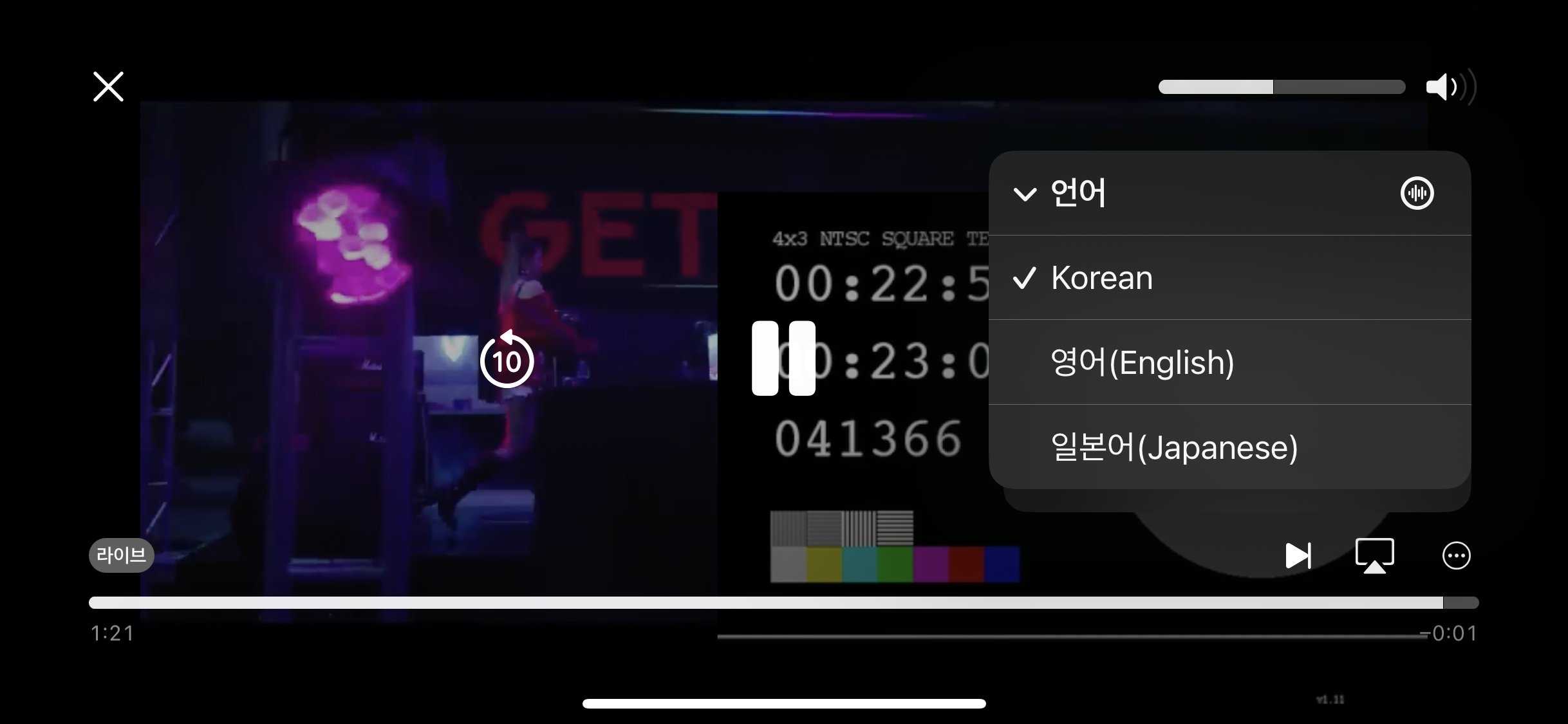
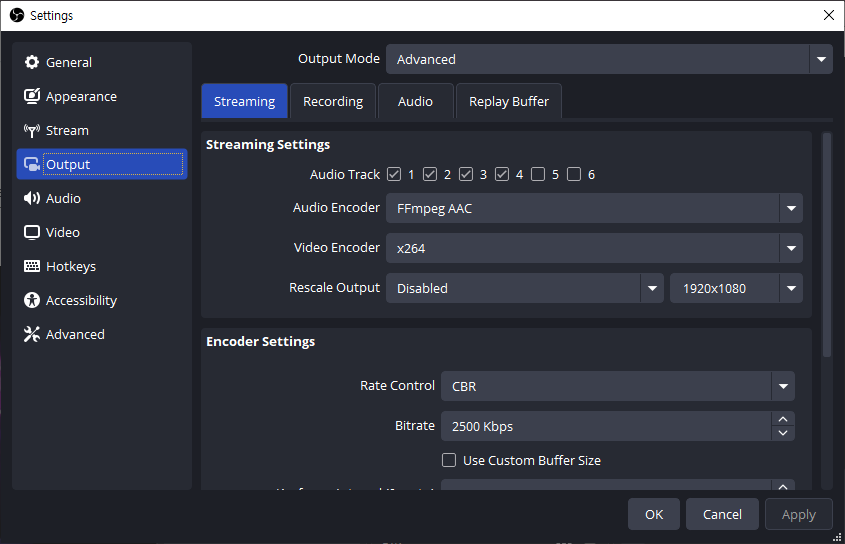
By simply sending multiple audio signals through SRT or Scheduled Channel, the LLHLS Publisher can provide multiple audio tracks. For example, to send multiple audio signals via SRT from OBS, you need to select multiple Audio Tracks and configure the Advanced Audio Properties to assign the appropriate audio to each track.
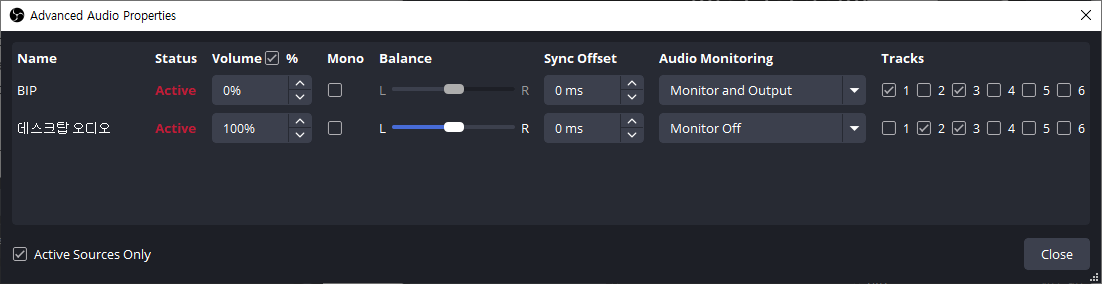
Since the incoming audio signals do not have labels, you can enhance usability by assigning labels to each audio signal as follows.
Labeling in SRT Provider
To assign labels to audio signals in the SRT Provider, configure the <AudioMap> as shown below:
<!-- /Server/VirtualHosts/VirtualHost/Applications/Application -->
<Providers>
    <SRT>
        <AudioMap>
            <Item>
                <Name>English</Name>
                <Language>en</Language> <!-- Optioanl, RFC 5646 -->
                <Characteristics>public.accessibility.describes-video</Characteristics> <!-- Optional -->
            </Item>
            <Item>
                <Name>Korean</Name>
                <Language>ko</Language> <!-- Optioanl, RFC 5646 -->
                <Characteristics>public.alternate</Characteristics> <!-- Optional -->
            </Item>
            <Item>
                <Name>Japanese</Name>
                <Language>ja</Language> <!-- Optioanl, RFC 5646 -->
                <Characteristics>public.alternate</Characteristics> <!-- Optional -->
            </Item>
        </AudioMap>
    ...
    </SRT>
</Providers>
Labeling in Scheduled Channel
<?xml version="1.0" encoding="UTF-8"?>
<Schedule>
    <Stream>
        <Name>today</Name>
        <BypassTranscoder>false</BypassTranscoder>
        <VideoTrack>true</VideoTrack>
        <AudioTrack>true</AudioTrack>
        <AudioMap>
            <Item>
                <Name>English</Name>
                <Language>en</Language> <!-- Optioanl, RFC 5646 -->
                <Characteristics>public.accessibility.describes-video</Characteristics> <!-- Optional -->
            </Item>
            <Item>
                <Name>Korean</Name>
                <Language>ko</Language> <!-- Optioanl, RFC 5646 -->
                <Characteristics>public.alternate</Characteristics> <!-- Optional -->
            </Item>
            <Item>
                <Name>Japanese</Name>
                <Language>ja</Language> <!-- Optioanl, RFC 5646 -->
                <Characteristics>public.alternate</Characteristics> <!-- Optional -->
            </Item>
        </AudioMap>
    </Stream>
</Schedule>
DRM
OvenMediaEngine encrypts LLHLS streams with Common Encryption (CENC) and signals the keys in the playlists, so players can obtain a license and decrypt the content. Widevine, FairPlay and PlayReady are supported.
Encryption keys are described in a separate DRM info file, which lets you apply different keys to different streams and change them without editing Server.xml.
Enabling DRM
Turn DRM on in the LLHLS publisher and point it at your DRM info file. <InfoFile> takes a path relative to the directory where Server.xml is located, or an absolute path.
<!-- /Server/VirtualHosts/VirtualHost/Applications/Application -->
<Publishers>
    <LLHLS>
        <ChunkDuration>0.5</ChunkDuration>
        <PartHoldBack>1.5</PartHoldBack>
        <SegmentDuration>6</SegmentDuration>
        <SegmentCount>10</SegmentCount>
        <DRM>
            <Enable>true</Enable>
            <InfoFile>path/to/file.xml</InfoFile>
        </DRM>
        <CrossDomains>
            <Url>*</Url>
        </CrossDomains>
    </LLHLS>
</Publishers>
A stream reads the DRM info file when it starts.
DRM Info File
The file holds one or more <DRM> entries. Each entry states which streams it applies to and which key protects them. A stream uses the first entry it matches, so put more specific entries before broader ones.
<?xml version="1.0" encoding="UTF-8"?>
<DRMInfo>
    <DRM>
        <Name>MultiDRM</Name>
        <VirtualHostName>default</VirtualHostName>
        <ApplicationName>app</ApplicationName>
        <StreamName>stream*</StreamName>

        <CencProtectScheme>cbcs</CencProtectScheme>
        <KeyId>572543f964e34dc68ba9ba9ef91d4c4a</KeyId>
        <Key>16cf4232a86364b519e1982a27d90087</Key>
        <Iv>572547f914e34dc68ba9ba9ef91d4c4a</Iv>
        <Pssh>0000003f7073736800000000edef8ba979d64acea3c827dcd51d21ed0000001f1210572547f964e34dc68ba9ba9ef91d4c4a1a05657a64726d48f3c6899b06</Pssh>
        <FairPlayKeyUrl>skd://fairplay_key_url</FairPlayKeyUrl>
    </DRM>
</DRMInfo>
Stream matching
| Element | Description |
|---|---|
<Name> | A label for the entry. It is only used to tell entries apart. |
<VirtualHostName> | Virtual host the entry applies to. |
<ApplicationName> | Application the entry applies to. |
<StreamName> | Stream the entry applies to. Wildcards are supported, so stream* covers every stream whose name starts with stream. |
Key material
Your DRM provider supplies these values.
| Element | Description |
|---|---|
<CencProtectScheme> | cenc or cbcs. See Protection Schemes. |
<KeyId> | Key ID, 16 bytes in hexadecimal. |
<Key> | Content key, 16 bytes in hexadecimal. |
<Iv> | Initialization vector, 16 bytes in hexadecimal. |
<Pssh> | A protection system header in hexadecimal. Add one <Pssh> per DRM system you want to offer. |
<FairPlayKeyUrl> | Key URI for FairPlay. Required to offer FairPlay. |
<Keyformat> | FairPlay key format. Leave it out for FairPlay Streaming, or set it to identity to have the URI return the key itself. |
Which DRM systems a stream offers follows from what you provide: each <Pssh> carries in its SystemID the system it belongs to, and <FairPlayKeyUrl> enables FairPlay. A PlayReady <Pssh> uses the SystemID 9a04f079-9840-4286-ab92-e65be0885f95 and has to carry the PlayReady Object (PRO) in its Data field.
Protection Schemes
<CencProtectScheme> selects how the media is encrypted.
| Scheme | Description |
|---|---|
cbcs | AES-CBC with pattern encryption. Required for FairPlay, and supported by Widevine and PlayReady. |
cenc | AES-CTR full sample encryption. Supported by Widevine and PlayReady. |
Use cbcs when a single stream has to serve FairPlay together with other systems.
Playback
OvenPlayer provides DRM options. Enable DRM and enter the license URL of your DRM provider.

DRM Provider Integration
The Open Source edition implements the standard side of DRM in full. It encrypts with Common Encryption and signals the keys for Widevine, FairPlay and PlayReady, which is everything a player needs to acquire a license and decrypt. A stream can therefore be served with the license server of a commercial DRM provider: you enter the key material the provider issues to you, as shown above.
Automating key issuance and application requires integrating with the key management service (KMS) of a DRM provider such as DoveRunner, which issues a key for each stream on request. Such an integration is specific to each provider, since the service, the credentials it issues and the details of its requests are the provider's own and are revised on their schedule, and it can only be exercised with a paid account at that provider. Keeping it working therefore takes those accounts and continuous testing against the live service, and it is provided in the Enterprise edition.