DoveRunner (PallyCon) DRM Configuration
OvenMediaEngine Enterprise integrates with the key management service (KMS) of DoveRunner, formerly PallyCon. You give OvenMediaEngine the address of the service and a token, and it requests a key for each stream as the stream starts. Nothing has to be prepared for a stream before it goes on air.
Before you start
From the DoveRunner console, have these ready:
- the KMS URL of the CPIX key service
- the KMS token that authenticates OvenMediaEngine to it
Step 1. Enable DRM in the application
In Server.xml, turn DRM on in the LLHLS publisher of the application and point it at a DRM info file. <InfoFile> takes a path relative to the directory that holds Server.xml, or an absolute path.
<!-- /Server/VirtualHosts/VirtualHost/Applications/Application/Publishers -->
<LLHLS>
    <ChunkDuration>0.5</ChunkDuration>
    <PartHoldBack>1.5</PartHoldBack>
    <SegmentDuration>6</SegmentDuration>
    <SegmentCount>10</SegmentCount>
    <DRM>
        <Enable>true</Enable>
        <InfoFile>path/to/file.xml</InfoFile>
    </DRM>
    <CrossDomains>
        <Url>*</Url>
    </CrossDomains>
</LLHLS>
Step 2. Write the DRM info file
<?xml version="1.0" encoding="UTF-8"?>

<DRMInfo>
    <DRM>
        <Name>DoveRunner</Name>
        <VirtualHostName>default</VirtualHostName>
        <ApplicationName>app</ApplicationName>
        <StreamName>stream*</StreamName> <!-- Can be wildcard regular expression -->

        <DRMProvider>DoveRunner</DRMProvider> <!-- Manual(default), DoveRunner (or Pallycon) -->
        <DRMSystem>Widevine,Fairplay,PlayReady</DRMSystem> <!-- Widevine, Fairplay, PlayReady -->
        <CencProtectScheme>cbcs</CencProtectScheme> <!-- cbcs, cenc -->
        <ContentId>${VHostName}_${AppName}_${StreamName}</ContentId>
        <KMSUrl>https://kms.pallycon.com/v2/cpix/pallycon/getKey/</KMSUrl>
        <KMSToken>xxxx</KMSToken>
    </DRM>
</DRMInfo>
Which streams the entry applies to
| Element | Description |
|---|---|
<Name> | A label for the entry. It is only used to tell entries apart. |
<VirtualHostName> | Virtual host the entry applies to. |
<ApplicationName> | Application the entry applies to. |
<StreamName> | Stream the entry applies to. Wildcards are supported, so stream* covers every stream whose name starts with stream. |
You can put several <DRM> entries in the file. A stream uses the first entry it matches, so put more specific entries before broader ones.
How the keys are obtained
| Element | Description |
|---|---|
<DRMProvider> | Set it to DoveRunner to request the keys from the service. Pallycon is accepted as well, under the name the service used before. Left out, the entry falls back to Manual and expects key material written into the file. |
<DRMSystem> | Which DRM systems to offer for this stream, separated by commas. Widevine, Fairplay and PlayReady can be combined. |
<CencProtectScheme> | How the media is encrypted. cbcs is AES-CBC with pattern encryption and is required for FairPlay; cenc is AES-CTR full sample encryption. Use cbcs if FairPlay is among the systems. |
<ContentId> | Identifies the content to the service. It also decides which streams share a key, so give each stream its own value unless you mean to share one. |
<KMSUrl> | Address of the key management service. |
<KMSToken> | Token that authenticates OvenMediaEngine to the service. |
<ContentId> can be built from macros, which is the usual way to give every stream its own identifier without listing them.
| Macro | Replaced with |
|---|---|
${VHostName} | Name of the virtual host |
${AppName} | Name of the application |
${StreamName} | Name of the stream |
A stream reads the DRM info file when it starts, so a change to the file reaches new streams without restarting the server.
Step 3. Rotate the key (optional)
A stream can move to a new key while it runs, so a viewer who obtained one key cannot keep decrypting the stream indefinitely. Add <KeyRotationPeriod> to the entry, and OvenMediaEngine requests a key for each period and moves to it as the period turns.
<DRM>
    <Name>DoveRunner</Name>
    <VirtualHostName>default</VirtualHostName>
    <ApplicationName>app</ApplicationName>
    <StreamName>stream*</StreamName>

    <DRMProvider>DoveRunner</DRMProvider>
    <DRMSystem>Widevine,Fairplay,PlayReady</DRMSystem>
    <CencProtectScheme>cbcs</CencProtectScheme>
    <KeyRotationPeriod>600</KeyRotationPeriod> <!-- seconds -->
    <ContentId>${VHostName}_${AppName}_${StreamName}</ContentId>
    <KMSUrl>https://kms.pallycon.com/v2/cpix/pallycon/getKey/</KMSUrl>
    <KMSToken>xxxx</KMSToken>
</DRM>
<KeyRotationPeriod> is a number of seconds of stream time.
| Value | Behaviour |
|---|---|
| Left out | The stream keeps one key from start to end. |
0 | No rotation on its own. The key changes only when asked for. |
Above 0 | The key changes every that many seconds, and can also be asked for in between. |
The key of the next period is fetched in advance, so a slow answer from the service does not hold up the stream. If a key is not there when a period turns, the stream keeps the key it has and moves on at the next period, rather than interrupting playback.
A rotation takes effect where the next segment of each track starts, which keeps every segment on a single key. Nothing is cut and no discontinuity is inserted, so playback continues across it. Segments already in the playlist keep the key they were encrypted with, so a player that is behind the live edge is unaffected.
Rotation has to be enabled on the licensing side as well, or players will fail to obtain a license even though the stream is packaged correctly.
- The key rotation right must be activated for your DoveRunner site. Without it the license server answers
1921 This site does not use a key rotation. - The license token the player sends must set
key_rotationtotrue. It defaults tofalse, and a token without it makes the license server answer7001 The packaging information could not be found.
Both are settings of your DoveRunner account and player, not of OvenMediaEngine. Contact DoveRunner to have key rotation activated for your site.
Leaving <KeyRotationPeriod> out keeps the request to the service exactly as it was before rotation existed, so a stream that does not rotate is unaffected by these requirements.
Rotating on request (REST API)
A stream whose entry states a <KeyRotationPeriod> can also be moved to its next key at any moment, whether or not it rotates on a period of its own.
POST /v1/vhosts/{vhost}/apps/{app}/streams/{stream}:rotateDrmKey
The stream picks the new key up where the next segment of each track starts, the same as a rotation on a period. See Rotate DRM Key for the headers and the responses.
Checking Applied DRM
Checking applied DRM in Settings
To verify the DRM settings, click the Settings icon at the top right of the Web Console. In the displayed screen, select the Streaming tab and click on the LLHLS sub-item to view the DRM configurations.
Checking applied DRM in OvenPlayer
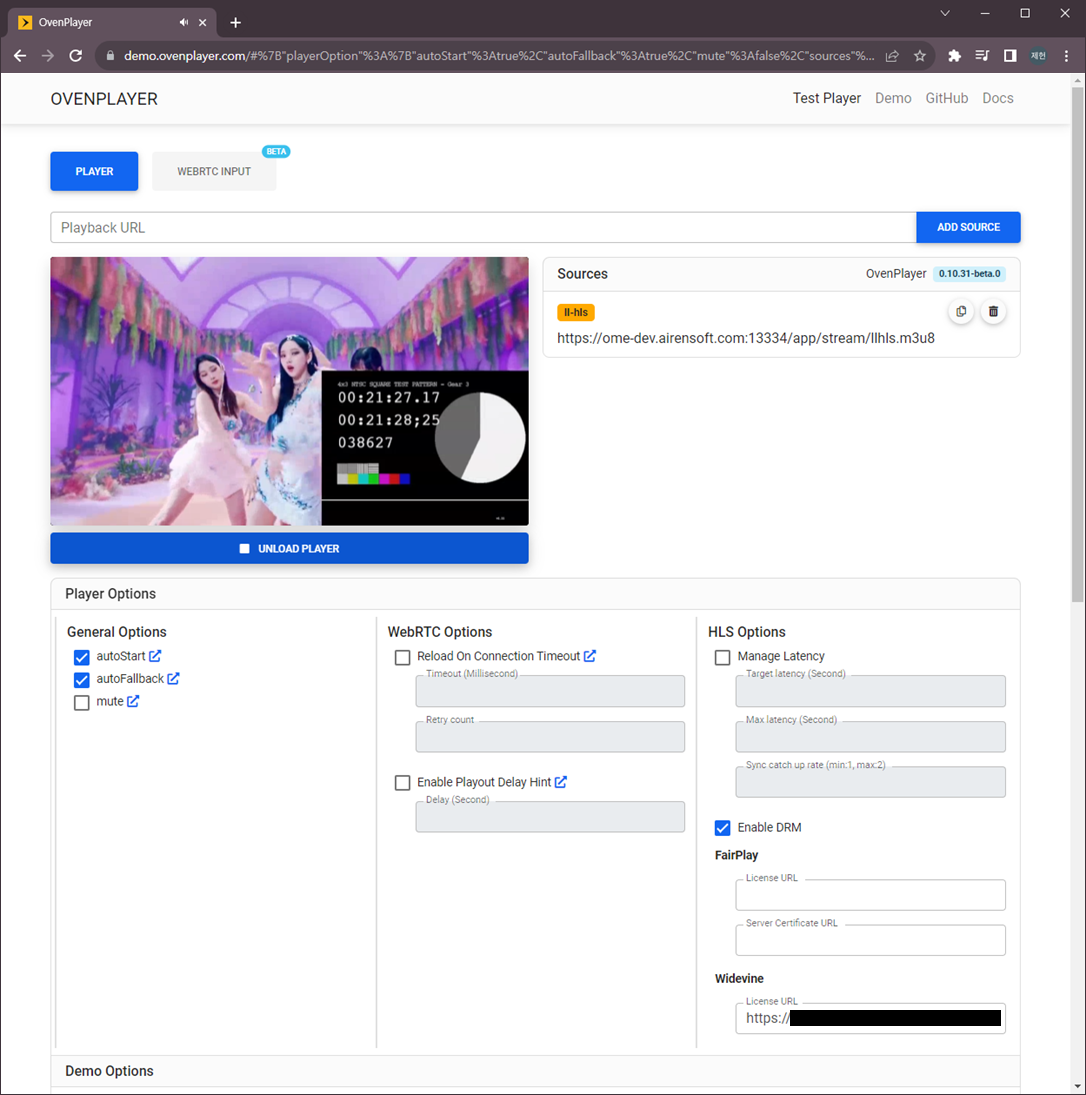
OvenPlayer Demo now includes the Enable DRM option. You can test the applied DRM using the Egress URL provided by OvenMediaEngine Enterprise.
To find the Egress URL, go to the Stream List in the Web Console and click on the generated Stream Box to enter the Monitoring screen. Then, click the URLs tab to view the Egress URL.
You can test DRM functionality by entering the Egress URL along with the License URL, Key, Value, and other required fields in the OvenPlayer Demo.